
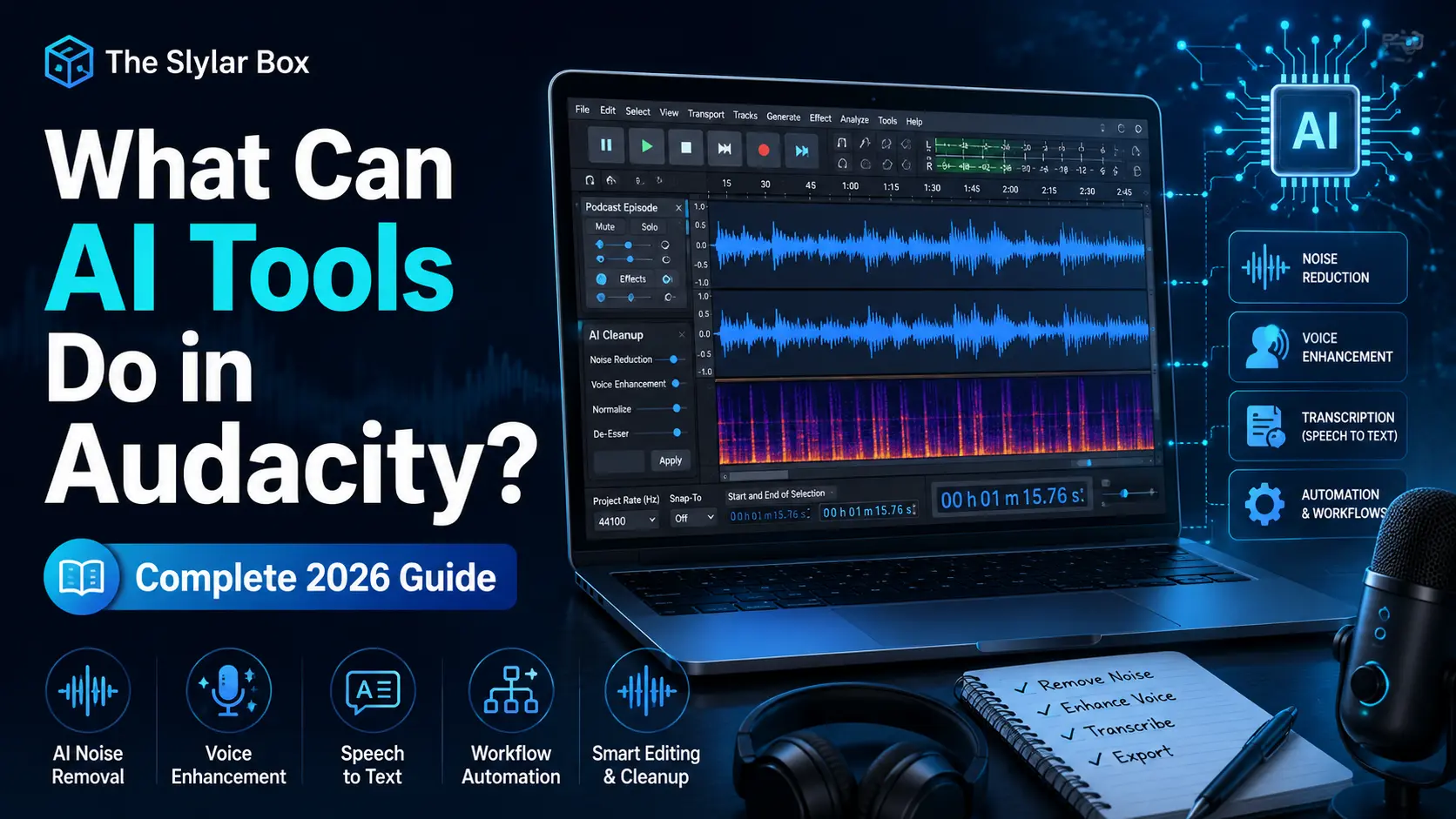
AI Tools in Audacity: The Complete 2026 Guide
AI tools in Audacity can separate a song into individual stems, remove background noise, generate original music from a text prompt, transcribe speech to text, and upscale low-quality audio , all running locally on your computer for free, with no subscription required.
In this guide, we’ll break down exactly what these AI tools in Audacity can do, how to install them, and what hardware you need to run them smoothly.
Where Do AI Tools in Audacity Come From?
Audacity doesn’t include AI features by default. Instead, AI tools in Audacity are added through a free plugin pack called OpenVINO AI Effects, built by Intel and distributed through MuseHub (Audacity’s official plugin marketplace). Once installed, these AI tools appear directly inside Audacity’s Effects menu, working just like any other built-in effect.
5 Things AI Tools in Audacity Can Do
1. Separate Vocals and Instruments (Music Separation)
This is the most popular of all the AI tools in Audacity. Using a deep learning model called Demics v4, it can split a single audio track into:
- 2-Stem mode: Vocals + Instrumental (ideal for making karaoke tracks)
- 4-Stem mode: Vocals, Drums, Bass, and Other Instruments separately
This is useful for remixing songs, removing vocals from a track, isolating an instrument to practice along with, or cleaning up a live recording where instruments bled into each other.
2. Remove Background Noise (Noise Suppression)
This tool is trained specifically to clean up spoken-word audio , podcasts, voiceovers, interviews, and field recordings. It handles hums, fans, traffic noise, and room echo noticeably better than Audacity’s older built-in Noise Reduction tool, especially on inconsistent background noise that’s hard to sample manually.
3. Generate Original Music From a Text Prompt (Music Generation)
Using Meta’s MusicGen model, this feature can create short original music clips from a written description (for example, “upbeat acoustic guitar loop”) or continue an existing piece of music you’ve already recorded. It’s useful for royalty-free background music, filling gaps in a soundtrack, or quickly prototyping a musical idea.
4. Turn Speech Into Text (Transcription)
Powered by OpenAI’s Whisper model running locally, this feature transcribes spoken audio into a text-based label track inside Audacity. You can export the result as a subtitle file, making it useful for captioning videos, transcribing interviews, or creating a written record of a voice recording.
5. Improve Low-Quality Audio (Super Resolution)
This effect upsamples audio to increase its clarity , useful for old recordings, low-quality phone audio, or audio originally recorded at a low sample rate (like old telephone calls at 8kHz). It won’t fix badly distorted audio, but it can meaningfully improve muffled or thin-sounding recordings.
How to Install AI Tools in Audacity (Step by Step)
- Update Audacity to the latest version from audacityteam.org or MuseHub.
- Download and install the MuseHub desktop app (required to manage the AI plugin pack).
- Inside MuseHub, search for “OpenVINO AI Tools” and click Install.
- During installation, choose which AI models you want (they take up storage space, so only install what you’ll use).
- Restart Audacity completely.
- Open the Effects menu , the AI tools in Audacity will now appear under OpenVINO AI Effects.
Do You Need a Powerful Computer to Run These AI Tools in Audacity?
AI effects are more demanding than standard Audacity effects, but here’s what actually matters:
- Windows and macOS are supported; Linux support is more limited.
- A dedicated GPU (or a modern Intel NPU) processes audio significantly faster than CPU-only systems.
- Processing typically takes 1–3 minutes for a 3-minute song on decent hardware , older CPUs can take 5–10 minutes.
- The first run is usually the slowest, since the AI model needs to “warm up”; later runs are faster.
Common Issues With AI Tools in Audacity
“OpenVINO AI Effects” doesn’t appear in the Effects menu
Confirm the plugin actually finished installing through MuseHub, and make sure you fully restarted Audacity afterward , not just closed and reopened the window, but a full restart.
Audacity crashes when opening an AI effect
This has been reported on some versions after updates. Try reinstalling the plugin through MuseHub, and check the Audacity forum or GitHub page for a known fix for your specific version.
Processing takes a very long time or seems frozen
AI effects are CPU/GPU-intensive. Check your Task Manager (Windows) or Activity Monitor (Mac) to confirm Audacity is still actively processing rather than stuck, and avoid running other heavy applications at the same time.
Frequently Asked Questions
Are AI tools in Audacity free?
Yes. The OpenVINO AI Effects plugin is completely free and processes audio locally on your own computer.
Do I need an internet connection to use AI tools in Audacity?
No. Once installed, all processing happens locally on your device , your audio is never uploaded anywhere.
Can AI tools in Audacity remove vocals from any song?
They work very well on most commercially produced tracks, especially in 4-stem mode. Results can vary on live recordings or tracks with heavily layered vocal effects.
Is the AI-generated music good enough for commercial use?
It’s best suited for short clips, background loops, and creative prototyping rather than fully produced, release-ready tracks , always checking the license terms of the underlying model before commercial use.
External Resources
Conclusion
AI tools in Audacity turn a free, open-source audio editor into something that can separate stems, clean up noisy recordings, generate music, transcribe speech, and repair low-quality audio , without a subscription or cloud upload. If you’re already using Audacity, installing the OpenVINO AI Effects pack through MuseHub is worth doing even if you only end up using one or two of these features regularly.